Graph
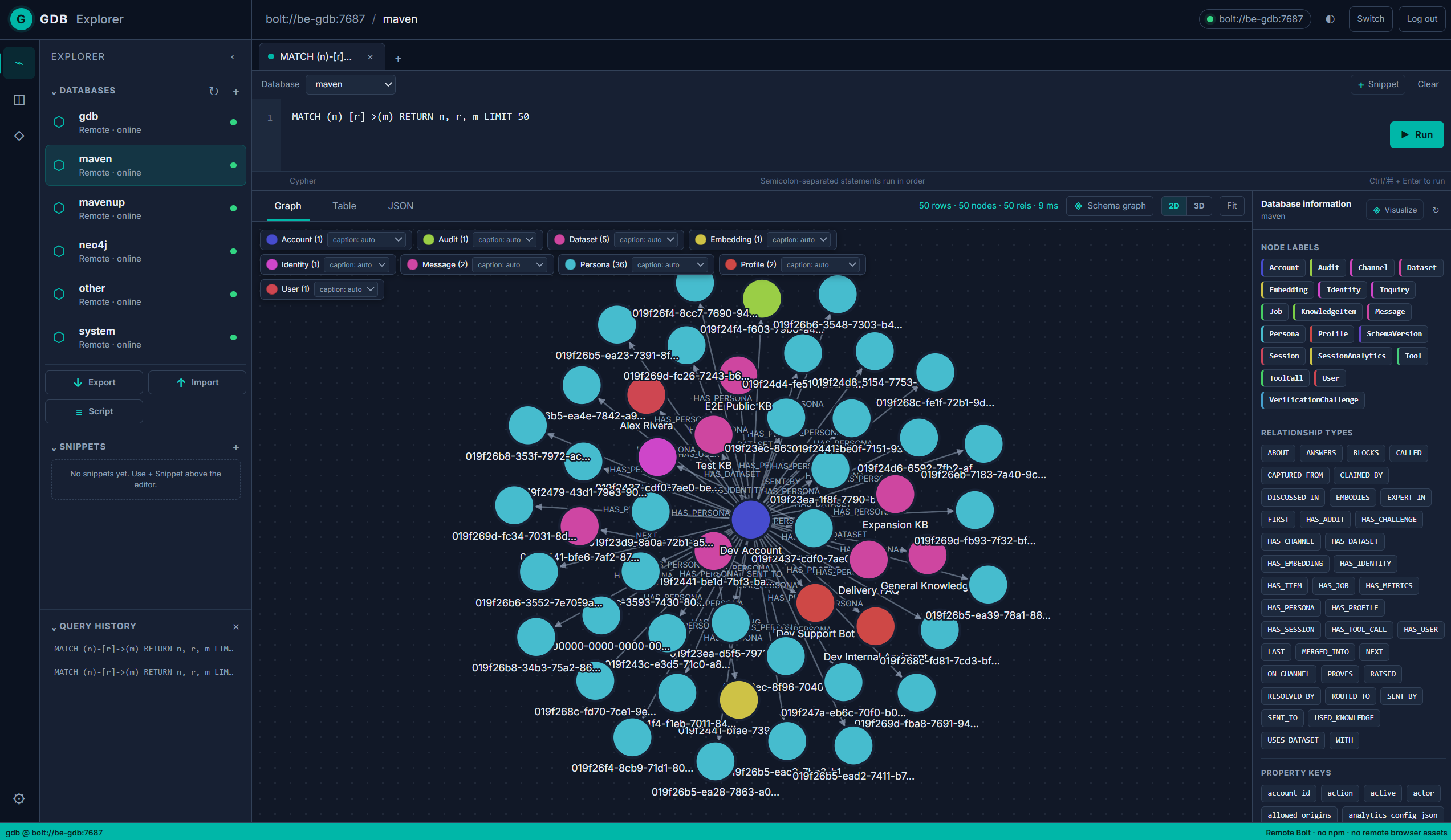
See nodes and relationships together. Follow a connection, move things around and open the details of anything that catches your eye.

Start with a query. Follow a relationship. Open a node and see what’s there. Explorer gives you a place to work with Galactus DB in your browser, from trying your first Cypher query to checking the data behind an application.
Switch between connections, rows, nested values and spatial shapes without running your query again.
See nodes and relationships together. Follow a connection, move things around and open the details of anything that catches your eye.
Render geometry, geography and points, including polygons with holes and multipart shapes. Pan, zoom and inspect coordinates in an offline view.
Read results row by row. Useful when you’re comparing values, checking a count or looking through the properties your query returned.
Look through nested values and the structure of a result when a flat table doesn’t tell the whole story.
Keep the queries you use often, find your way around an unfamiliar database and fix a property when you need to.
Run a single query or several statements separated by semicolons. Explorer runs them in order and shows the last result. If one fails, it points you to the statement and line.
Query history is saved automatically in your browser. Give a useful query a name and keep it as a snippet you can load, edit or delete later.
Double-click a node, or use its inspector, to bring its neighbours into view. Collapse them again when you’re done. Browsing changes the view, not the data.
Choose a 2D or 3D layout, adjust the depth and orbit the view. Pan, zoom, fit the graph to the screen or drag a node to pin it where you want it.
Open a node or relationship to read its properties. Edit node values with type checks for text, numbers, booleans, lists, maps, bytes and date/time values.
Switch databases, create a new one and refresh the list. Browse labels and relationship types in the schema panel, or open a schema graph with one click.
Save named connections and switch between servers without retyping every address. Connection details stay in your browser; saving a password is a separate, optional choice.
Choose colours for labels and which property appears as a node’s caption. Explorer remembers those choices, along with your light or dark theme.
With a Commercial database licence, download a native .gdb backup or upload one to restore it. Restoring replaces the selected database, and Explorer asks you to confirm first.
No. Explorer connects with your database username and password, and needs no licence of its own. You can query and browse a database in the free Developer edition. Native database backup and restore require Commercial entitlement on the server.
On your infrastructure, as a separate service that connects to Galactus DB over Bolt. The Docker Compose setup starts the database and Explorer together; you open Explorer in your browser. The images support Linux AMD64 and ARM64.
In the browser you’re using, so they aren’t shared across devices. Saved connections leave passwords out by default. If you choose to save a password, it is stored unencrypted in that browser’s local storage. Use that option only on a device and browser profile you trust.
Execution stops at the first error. Each statement commits separately, so any statements that already succeeded stay committed. The batch does not roll back as a single transaction.
Query responses are capped at 1,000 rows. Neighbour expansion loads up to 50 one-hop neighbours at a time, with a 200-relationship expansion ceiling. Narrow your query to focus on the part of the graph you need.
Database uploads are limited to 512 MiB. The database server’s input limit also applies, so a lower server limit can reduce that allowance.
The Docker Compose setup includes both Galactus DB and Explorer. Start in the free Developer edition, with no account or licence key needed.