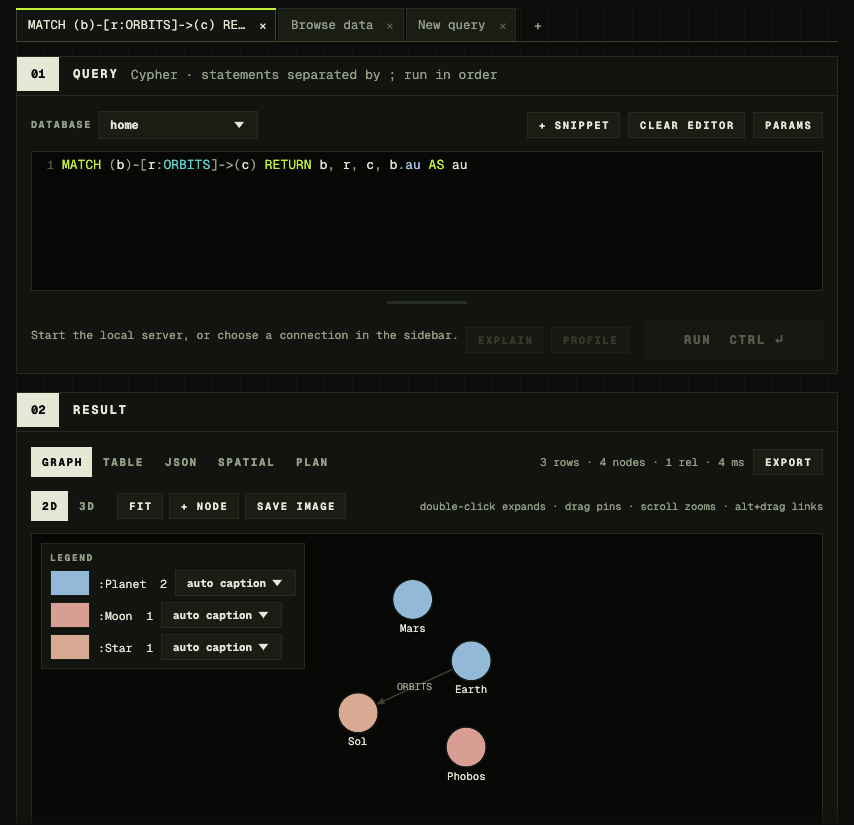
Station is one app for Windows, macOS and Linux that runs Galactus DB on your computer and opens any other instance you work with. The database, Explorer and the MCP server are all inside, so you go from download to your first query in about a minute.
Beta 0.5.3 · Windows 11 MB · macOS 21 MB · Linux 14 MB
1App to run, with the database, Explorer and MCP inside
3Desktops: Windows, macOS and Linux
7687Bolt port on 127.0.0.1, for every instance
0Accounts, sign-ins or licence keys
Everything in one window.
Station covers the day-to-day work with a graph: running it, querying it, looking after it and handing it to an agent.
Run Galactus DB on your computer
Press Start and the database is up on bolt://127.0.0.1:7687. Keep several named instances, each with its own data folder and database, and switch between them in one click. One runs at a time, so your clients always connect to the same address.
Connect to any instance
Save connections to Galactus DB in Docker, on a server or in Galactus Cloud, with TLS. Station works with each one the same way, and the passwords you choose to remember stay in your operating system's credential store.
Write Cypher with help
Highlighting, completion for keywords, labels, relationship types and property keys, find and replace, and parameters. Run several statements in order, and stop a long query from the editor.
See results six ways
Graph in 2D or 3D, Table, JSON, Spatial for points and shapes, Schedule for plans from the Native Scheduler, and the query Plan from EXPLAIN or PROFILE. Expand a node's neighbours, pin it where you want it and edit its properties.
Keep queries in collections
Group snippets into named collections with descriptions and parameters. Save a change straight back to its snippet, and share a collection with your team as one file.
Back up, restore and import
Take a snapshot of a database while it runs, restore it later, or archive a whole instance. Import Neo4j 4.x and 5.x dumps and Cypher scripts, and export results as CSV or JSON.
Shape the schema
Browse labels, relationship types and property keys, open a schema graph, and create or drop indexes and constraints. Every change shows the Cypher it runs.
Watch the server
Dashboards for the local instance and every connection: the queries running now, which you can stop, and the users and roles you can manage.
Hand your graph to an agent
Turn on the built-in MCP server and copy the ready-made configuration into Claude Desktop, Claude Code or another client. Agents sign in as their own read-only user, or as an editor if you allow writes, and every tool call is logged.
Start with Station
1
Download and unzip
The zip holds gdbstation.exe, a short README and the licence. There is nothing to install: put the folder wherever you keep your tools.
This developer build carries no code signature, so Windows SmartScreen checks with you the first time. Choose More info, then Run anyway. Windows remembers your answer for that file.
3
Start the server
Station has an instance called local ready for you. Press Start server, then run your first query in the editor. Applications on your computer connect to the same database as user gdb.
bolt://127.0.0.1:7687
1
Download and unzip
The zip holds Galactus DB Station.app, one app for Apple silicon and Intel Macs. Drag it to Applications, or open it where it is.
This developer build is not notarised by Apple, so macOS checks with you the first time. Control-click the app, choose Open, then Open again. You can also allow it in System Settings, under Privacy & Security, with Open Anyway. macOS remembers your answer.
3
Start the server
Station has an instance called local ready for you. Press Start server, then run your first query in the editor. Applications on your computer connect to the same database as user gdb.
bolt://127.0.0.1:7687
1
Download and unpack
The archive holds the gdbstation program, a desktop launcher and icon, install.sh, a short README and the licence.
Station runs from the folder as it is. To add it to your applications menu, run install.sh: it copies the program to ~/.local/bin and the launcher and icon into ~/.local/share.
cd gdbstation-0.5.3-linux-x64 && ./gdbstation
3
Start the server
Station has an instance called local ready for you. Press Start server, then run your first query in the editor. Applications on your computer connect to the same database as user gdb.
bolt://127.0.0.1:7687
Details
Do I need an account or a licence?
No. Station is free to use and asks for no account, sign-in, licence key or activation. Connections to your other servers use the database user and password you already have.
Where are my data and passwords kept?
On Windows, instances, settings, snippets and history live in %APPDATA%\Galactus\Station, and passwords in Windows Credential Manager.
On macOS, they live in ~/Library/Application Support/Galactus Station, and passwords in the Keychain.
On Linux, they live in ~/.local/share/galactus-station (or under $XDG_DATA_HOME), and passwords in the Secret Service: GNOME Keyring or KWallet.
Passwords never go in Station's files. Deleting an instance moves its data folder aside rather than erasing it.
Does the database keep running when I close Station?
The database runs while the Station window is open. Closing the window finishes open connections and stops it cleanly, and Station asks first when clients are still connected. For a server that stays up, run Galactus DB with Docker.
Can other machines or containers reach it?
Station listens on 127.0.0.1, so only programs on your computer connect to it. For a database that other machines and containers share, run Galactus DB with Docker or on a server, and connect Station to it.
How do the instances work?
Each instance is its own data folder with one database plus the system database for users and roles. Make as many as you like, name them, and rename or delete them while they are stopped. Starting one stops the one that is running, after asking.
The Station guide covers servers, queries, snippets, backups, agents and every shortcut.
Run your first query in a minute.
Download Station, press Start server and write some Cypher. Your data stays on your computer.